
This module brings full CDEK shipping integration to Odoo.
With this integration, users can ship parcels through CDEK directly from Odoo, with full API support. The module automatically calculates shipping rates based on package dimensions and weight, supports multiple delivery methods, and allows users to create, track, and cancel shipments without leaving Odoo.
Following OCA standards, the module documentation is included directly in the module itself. You can find it under:
Apps → CDEK Delivery → Module Info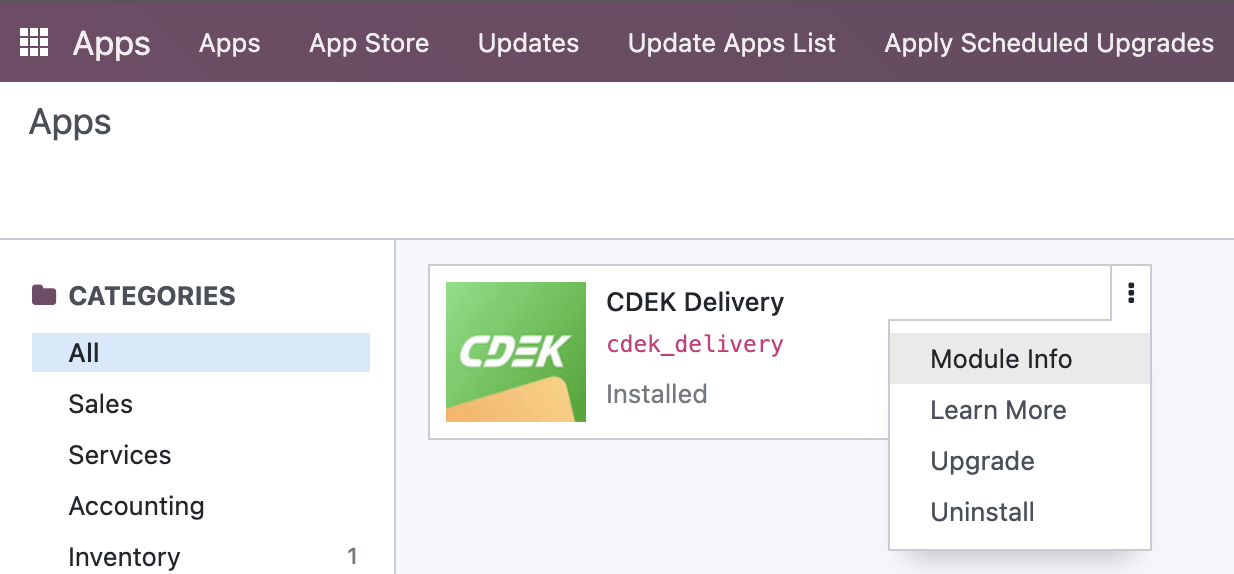
⚠️ Important:
Need support for newer Odoo versions? Feel free to contact the XXP team or contribute to the development and migration of the module.
Features
- Full API Integration
-
Automatic Shipping Rate Calculation
Shipping costs are calculated automatically based on package dimensions and weight. -
Multiple Delivery Methods
- Door-to-Door
- Door-to-Office
- Office-to-Office
- Terminal delivery
- Parcel lockers (Postbox)
-
Shipment Lifecycle Management
- Create shipments
- Track delivery status
- Cancel shipments directly from Odoo
-
CDEK Shipping Tariffs
- Support for CDEK shipping tariffs
- E-commerce and standard delivery options
-
Partner Delivery Preferences
- Configure preferred delivery methods
- Store CDEK pickup point codes
-
Additional CDEK Services
- Insurance
- Packaging
- Notifications
- Other optional services available during shipment creation
-
Online Shipment Tracking
- Track shipments through CDEK's online tracking system.
-
Shipping Documents
- Automatic generation of shipping documents and waybills.
Need additional functionality? Get in touch with the XXP team or contribute to the module's development. After all, that's what open source is about!
Table of Contents
- Installation
- Prerequisites
- Installing the CDEK Python Library
- Configuration
- Obtaining CDEK API Credentials
- Configuring the CDEK Delivery Carrier
- Configuring Partners for CDEK Delivery
- Configuring Packages (Optional)
- Configuring Products (Optional)
- Managing CDEK Services
- Usage
- Sales Workflow with CDEK Delivery
Installation
The module is available for download from our GitHub repository.
Prerequisites
The module depends on the following Odoo module:
- delivery — Odoo's standard delivery module
Installing the CDEK Python Library
The integration requires the CDEK Python SDK.
Install it using pip:
pip install cdek
For more information about the library, visit:
https://pypi.org/project/cdek/
Configuration
Obtaining CDEK API Credentials
- Before configuring the integration, you need CDEK API credentials. https://www.cdek.ru/
-
Obtain your API credentials:
- Client ID
- Client Secret
- Keep these credentials. You'll need them to configure the integration in Odoo.
Configuring the CDEK Delivery Carrier
Step 1. Open Shipping Methods
Navigate to:
Inventory → Configuration → Shipping Methods
Find the CDEK Delivery carrier.
Step 2. Basic Configuration
Open the CDEK Delivery carrier form and verify the following fields:
- Provider: CDEK
- Delivery Product: CDEK Delivery
Step 3. Configure the CDEK Connection
Open the CDEK Configuration tab and fill in the required parameters.
API Credentials (Production)
⚠️ Important:
If Production mode is not activated, the module will use test credentials.
-
To enable the production environment:
Click the Production Environment button in the upper-right corner of the carrier form. - Specify
- CDEK Client ID — your API client identifier
- CDEK Client Secret — your API secret key
Loading Shipping Tariffs
⚠️ Important:
We recommend checking with your CDEK account manager to determine which shipping tariffs are suitable for your business.
- Click Load Tariffs next to the Available Tariffs field.
- The module will retrieve available tariffs from the CDEK API.
- Select the tariffs you want to use from the Available Tariffs list.
Step 4. Additional Configuration
Select the appropriate shipment type:
- E-Commerce (1) — for online stores
- Delivery (2) — for standard shipping
Print Type
⚠️ Important:
This feature will be available in the PRO version.
This setting controls which documents are printed when processing shipments.
Available options:
- Waybill — print shipping waybills
- Barcode — print shipping barcodes
Default Delivery Type
Set the default shipment origin type:
- Door — pickup from a warehouse or business address
- Office — shipment from a CDEK pickup point
- Terminal — shipment from a CDEK terminal
Step 5. Configure the Warehouse or Sender Address
⚠️ Important:
Make sure the partner associated with your warehouse has all the required fields configured, as described in the Configuring Partners for CDEK Delivery section.
Navigate to:
Inventory → Configuration → Warehouses
Select your warehouse and open its associated partner address.
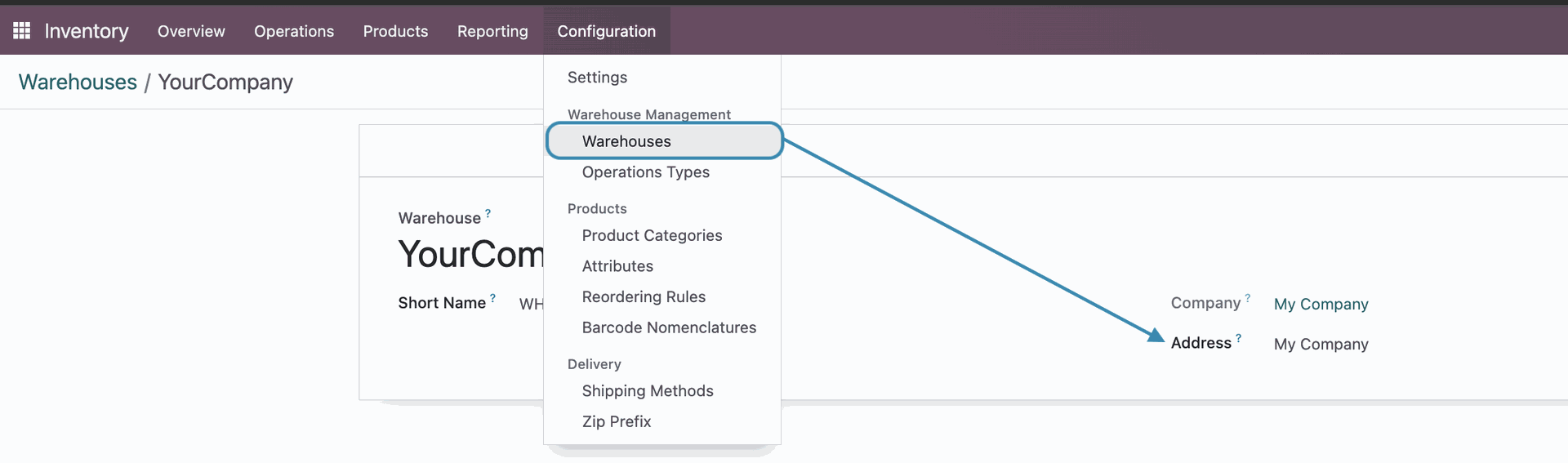
Configuring Partners for CDEK Delivery
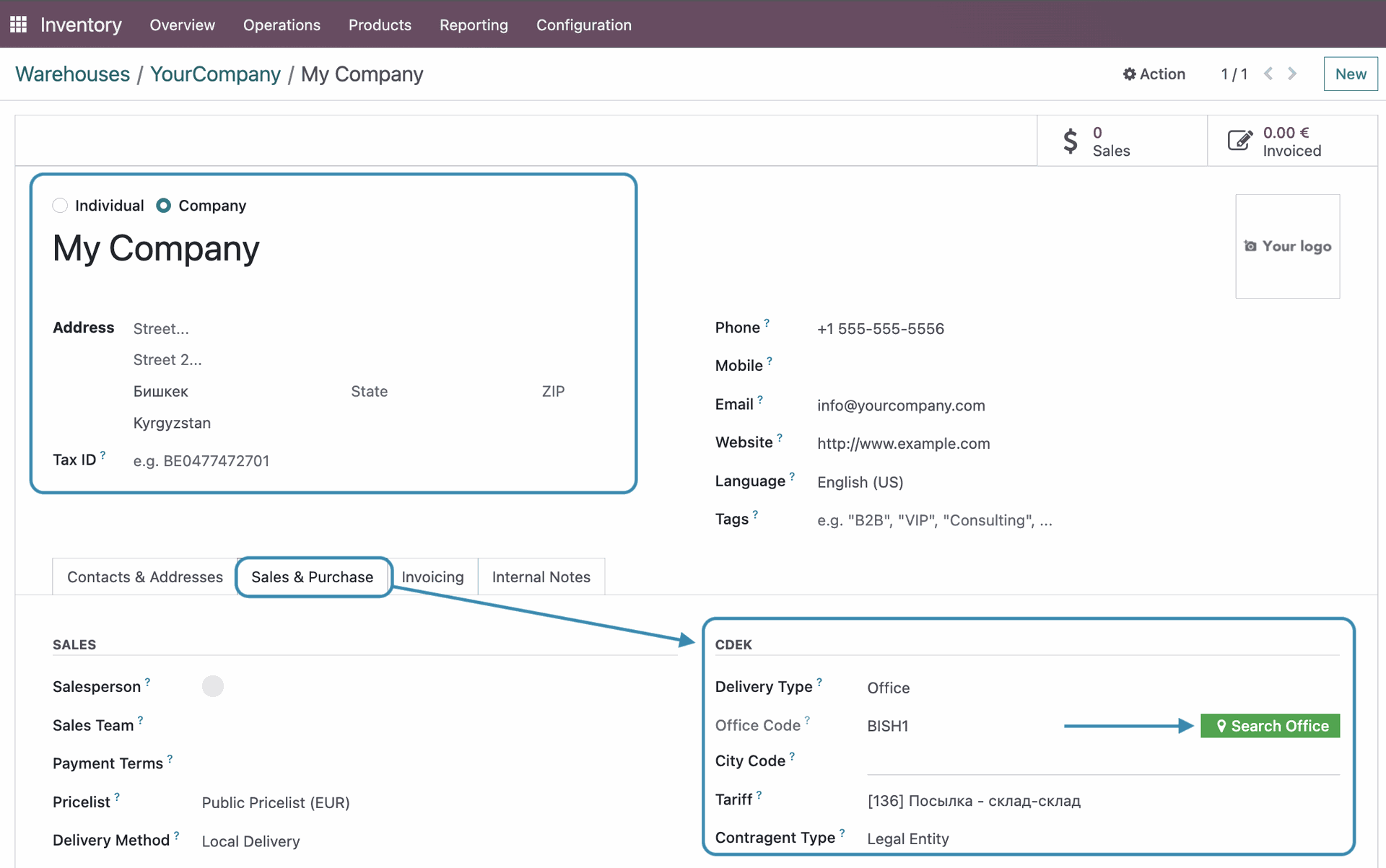
Open the partner record.
Navigate to:
Sales & Purchases → CDEK
Specify the Delivery Type.
If Delivery Type = Door
Fill in the following contact and address information:
- City — city
- Street — street and address
- Country — country
- Zip (optional) — postal code
- Phone — contact phone number
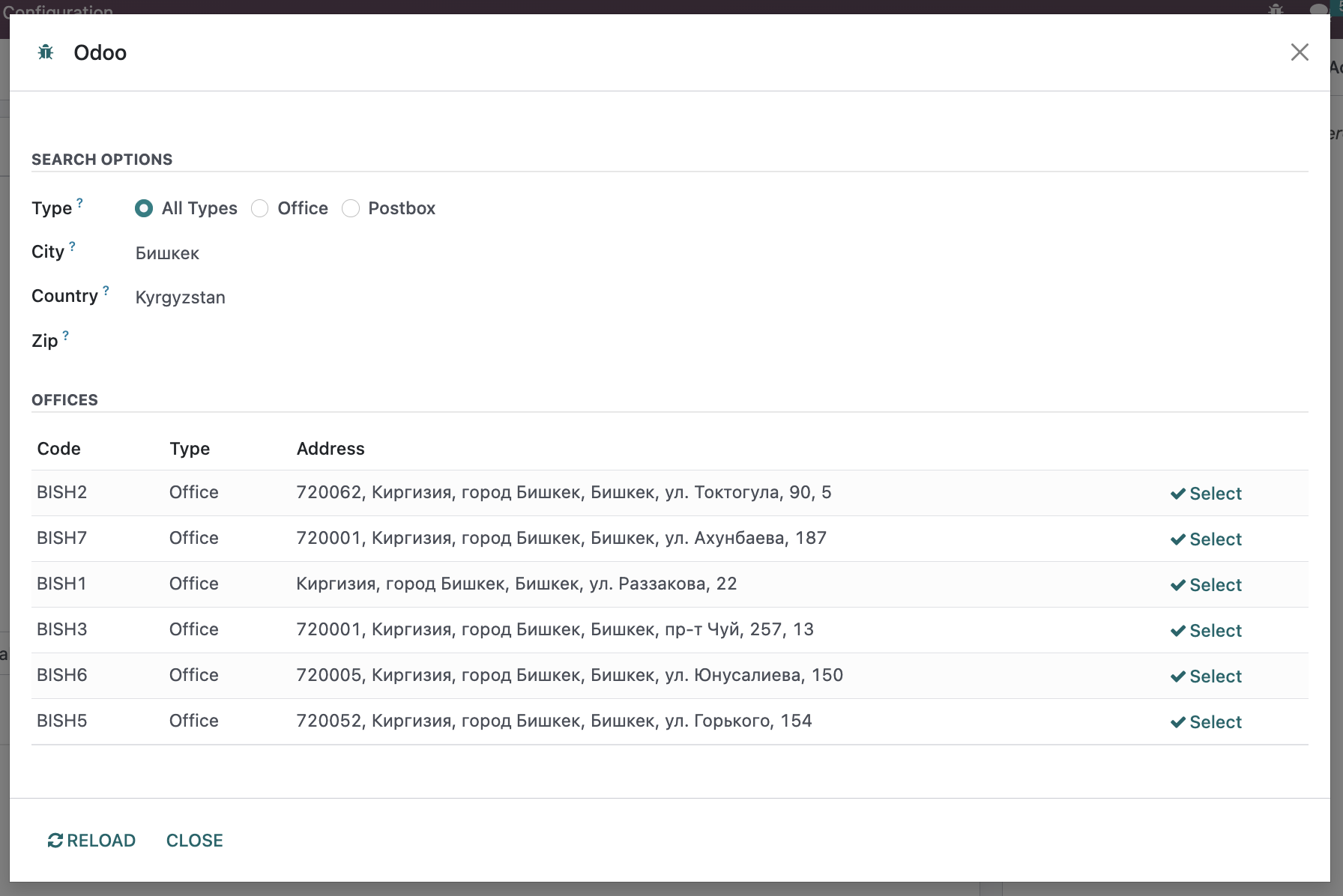
If Delivery Type = Office / Postbox
- Click Search Office.
- In the wizard:
- Fill in the search criteria.
- Click Load / Reload.
- Find the appropriate pickup point.
Select the appropriate delivery Tariff.
The partner type is determined automatically:
- Legal Entity — company
- Individual — private individual
Configuring Packages (Optional)
⚠️ Note:
Package configuration is optional. When calculating a shipping rate, Odoo will prompt you to select an existing package type or create a new one directly from the wizard.
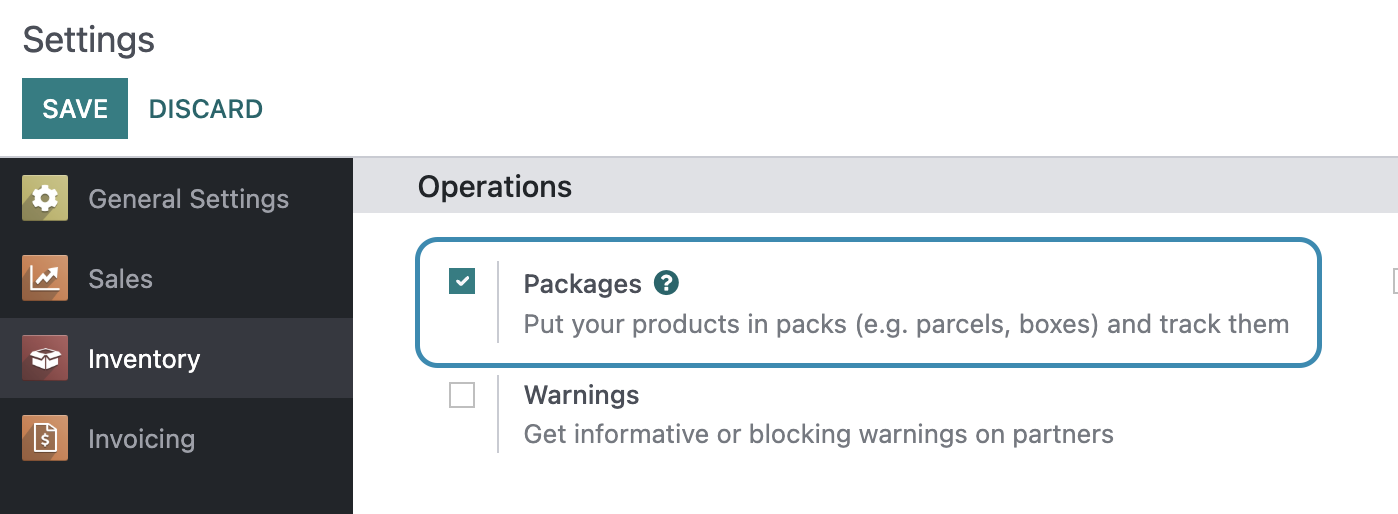
Enable Packages
Settings → Inventory → Operations → Packages
Configure Package Types
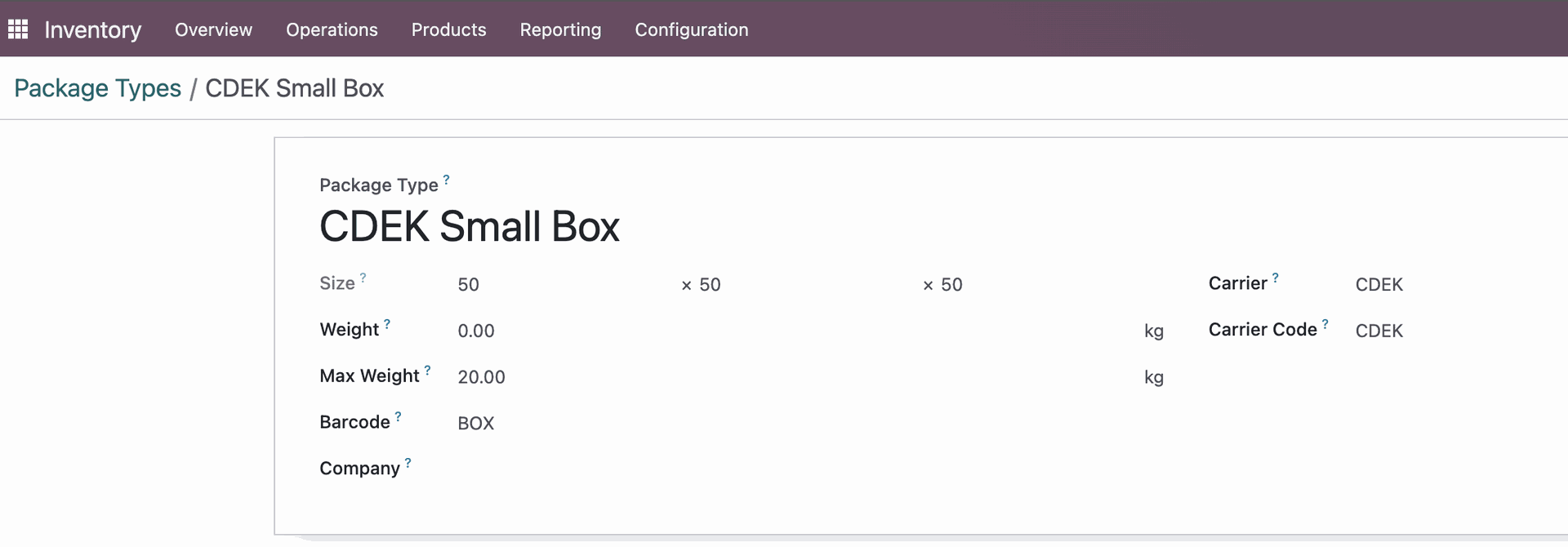
Inventory → Configuration → Package Types
- Open an existing package type or create a new one.
-
Specify
- Package dimensions
- Min and Max weight
- Optionally, assign a delivery carrier.
Configuring Products (Optional)
⚠️ Note:
This step is optional but recommended to ensure accurate shipping rate calculations.
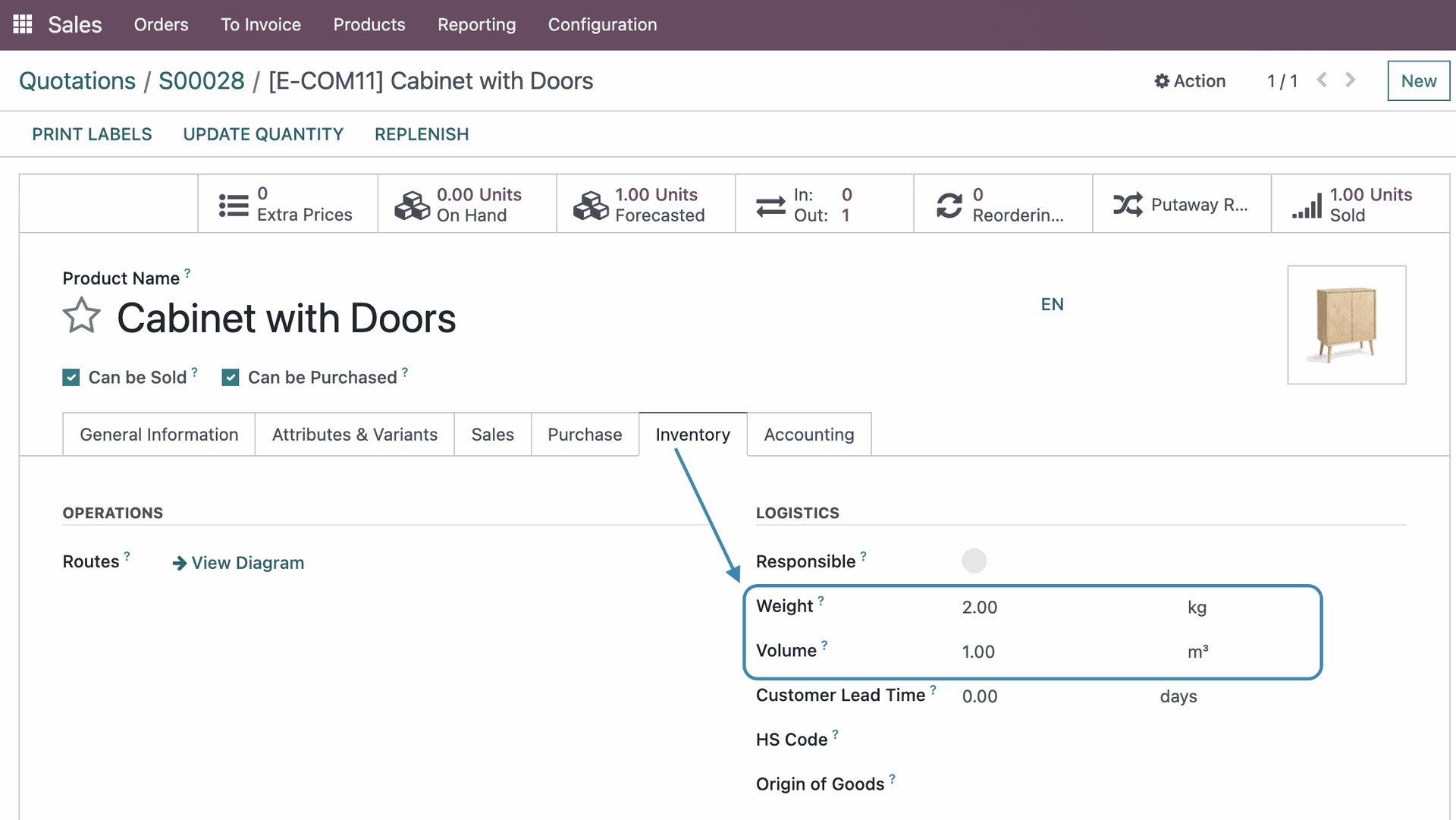
Navigate to:
Sales → Products → Product → Inventory
Set Weight and Volume
Managing CDEK Services
⚠️ Note:
Most CDEK services are already preconfigured. You only need to update them if CDEK changes its list of available services.
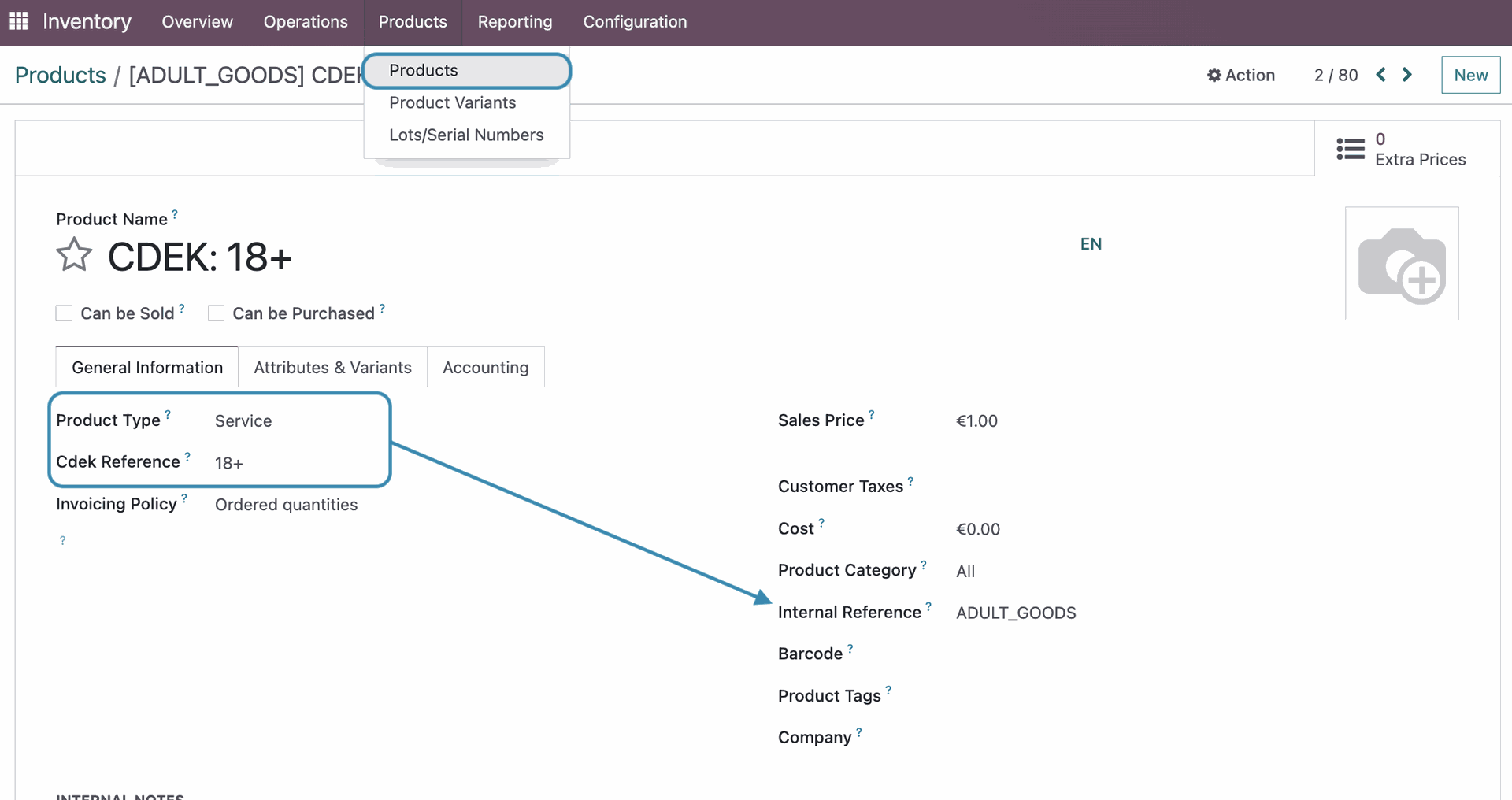
Navigate to:
Products → Products
Don't forget to clear the default search filters.
- Create a new product or open an existing one.
- Set Product Type = Service.
- Select the appropriate CDEK Reference.
When a CDEK service is selected, the module automatically:
- Sets the product type to Service
- Disables sales and purchases
- Stores the CDEK service code in the Internal Reference field
Usage
Sales Workflow with CDEK Delivery
⚠️ Important:
Before creating a shipment, make sure the customer has been properly configured for CDEK delivery.
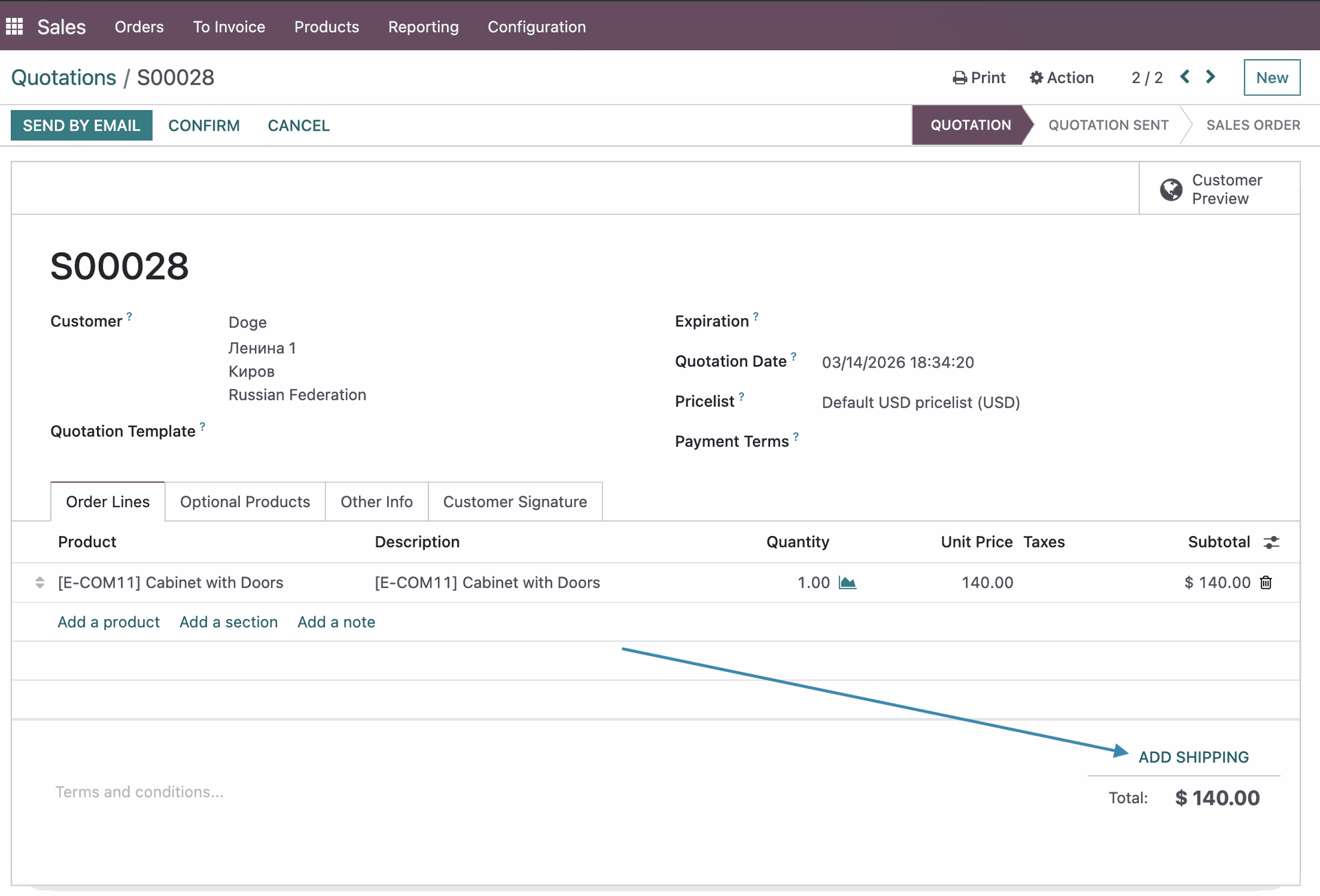
Create a Sales Order
- Open the Sales application.
- Click New.
- Select the Customer.
- Add the products to the order.
- Click Add Shipping.
Get a Shipping Rate
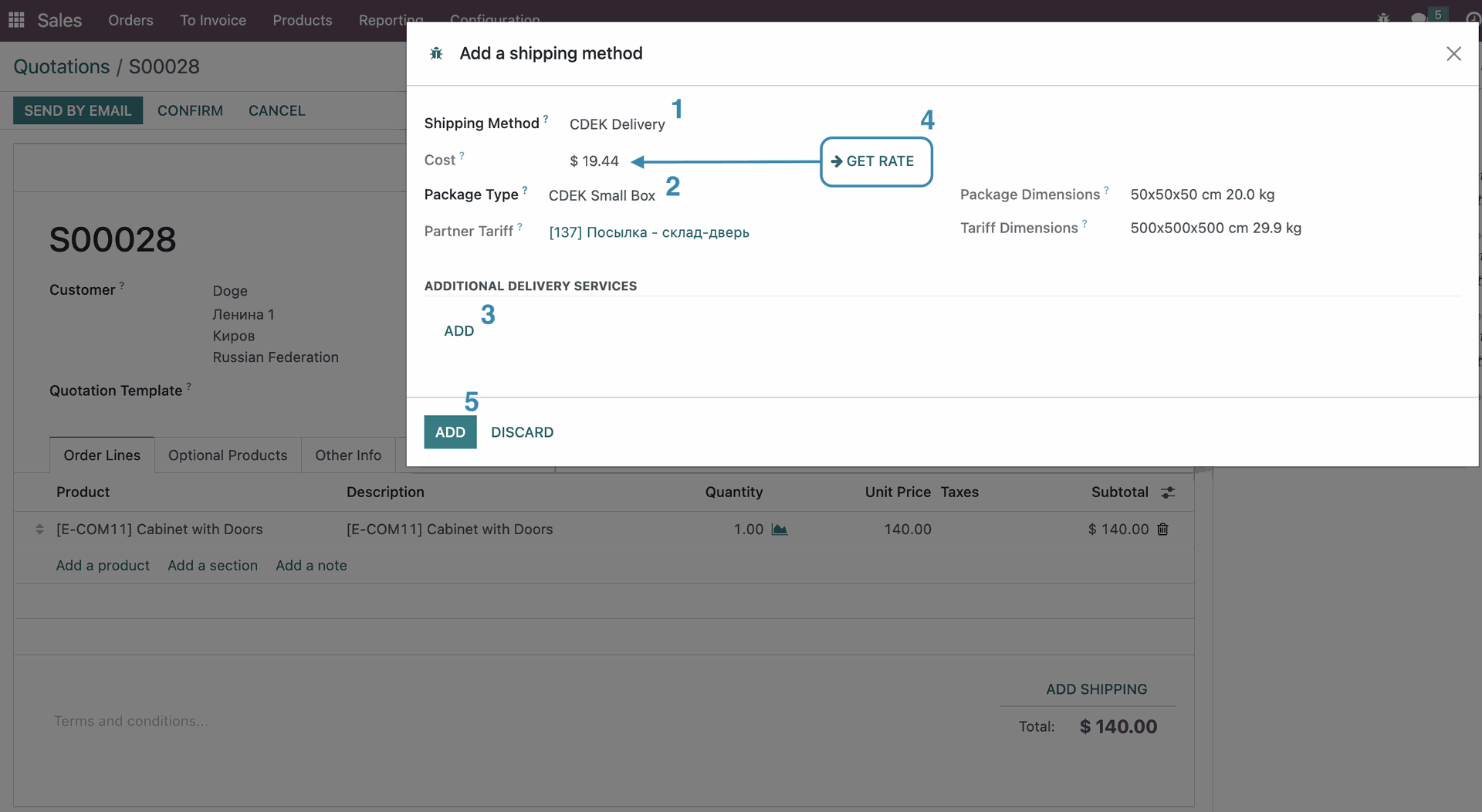
In the Add a Shipping Method wizard:
- Select CDEK Delivery in the Shipping Method field.
- Specify the Package Type.
- Add optional CDEK services if needed.
Additional Service Values
- Packages — Quantity (greater than 0)
- Insurance — Insured amount
- SMS — Phone number in +7XXXXXXXXXX format
- Packaging materials — Packaging length in meters
4. Click Get Rate. The shipping cost will be calculated automatically.
5. Click Add to include the shipping charge in the sales order.
Shipping Rate Calculation
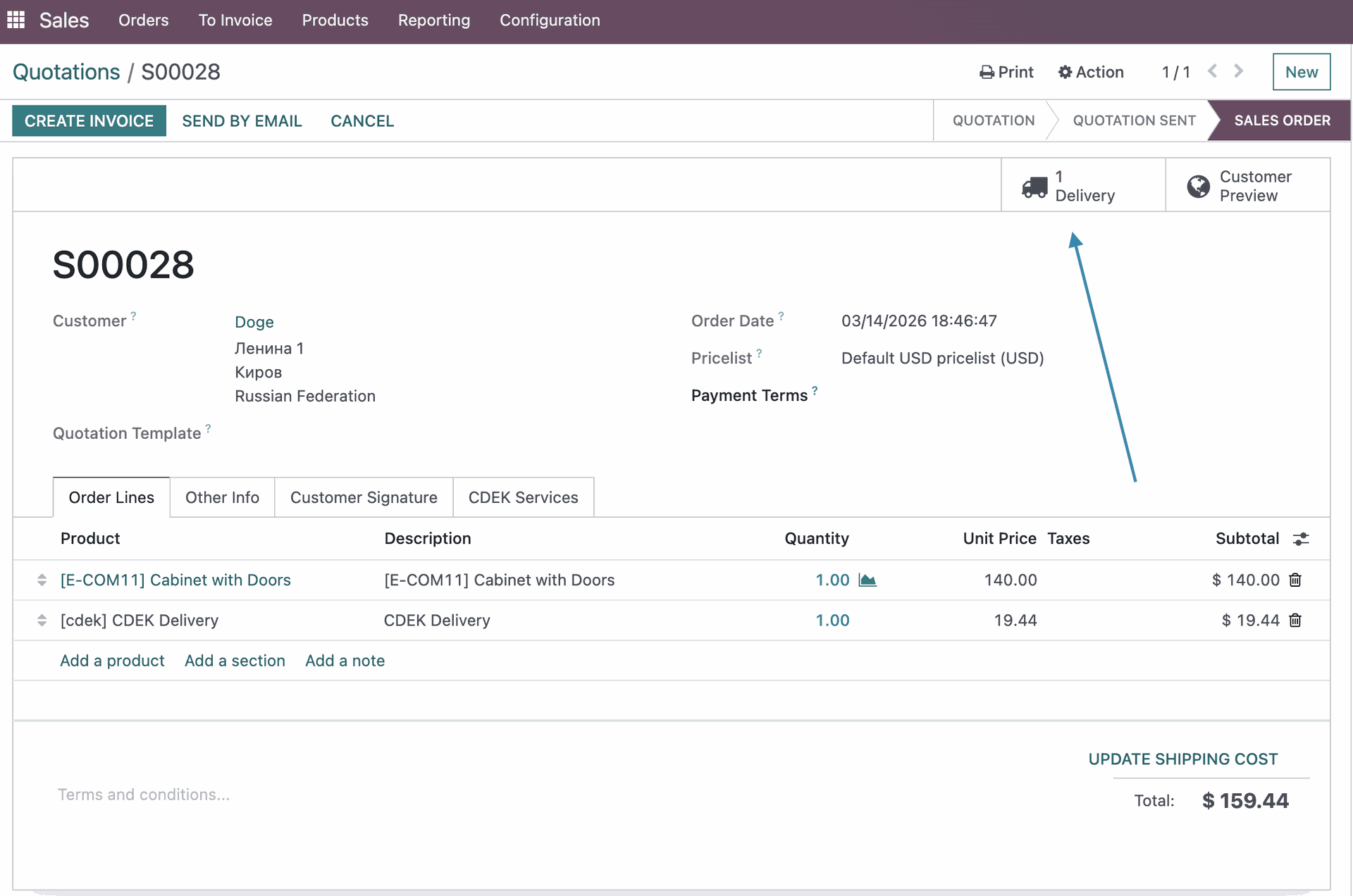
The shipping cost is calculated based on:
- Selected CDEK tariff
- Package dimensions and weight
- Additional CDEK services
- Delivery method (Door / Office / Terminal / Postbox)
Once the sales order is confirmed, Odoo automatically creates the corresponding delivery operation.
Register the Shipment with CDEK
- Open the corresponding Picking operation.
- Click Validate.
Odoo will register the shipment in the CDEK system.
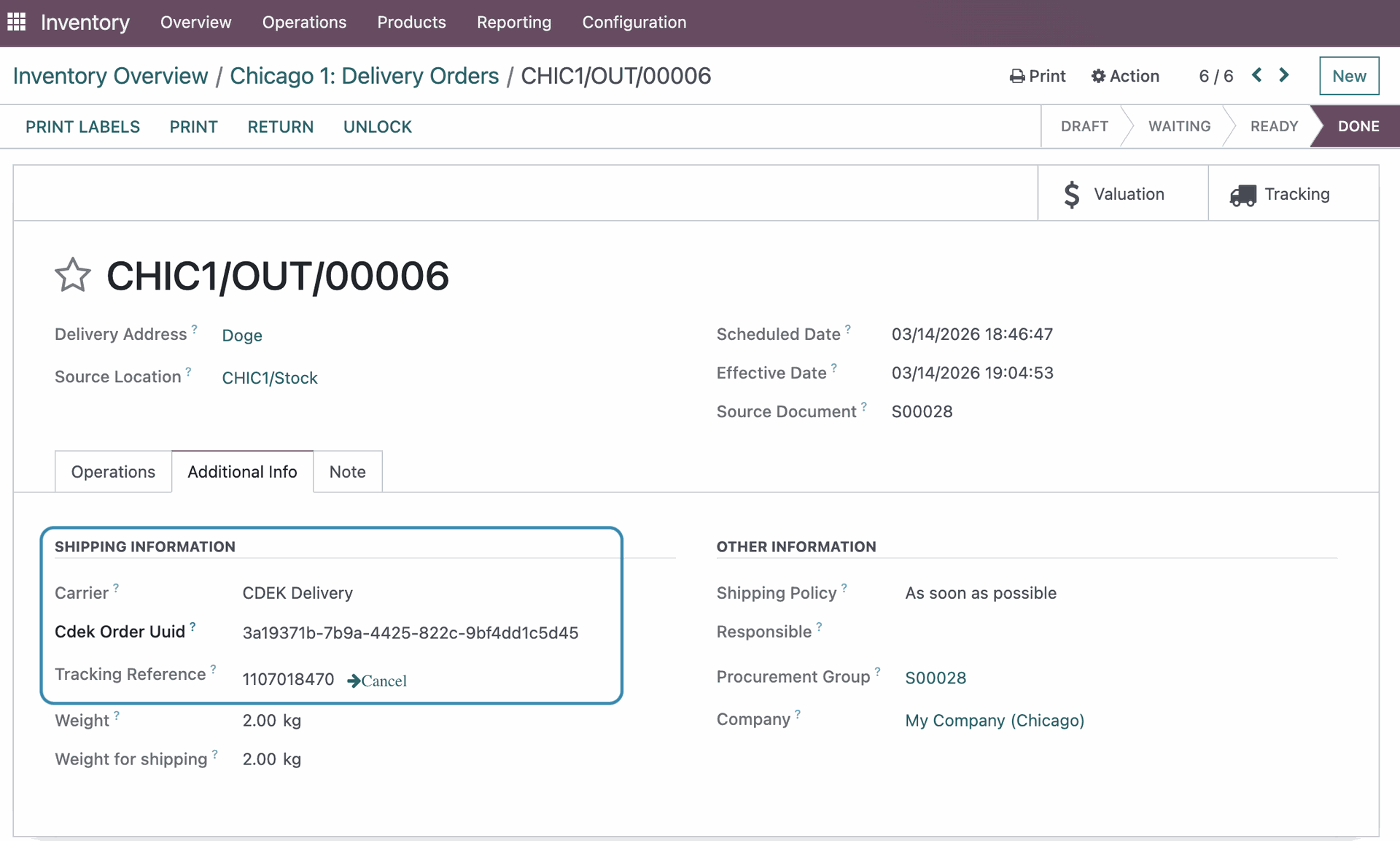
Open the Additional Info tab.
- CDEK Order UUID
- Tracking Reference
To track the shipment, click the Tracking button. You'll be redirected to the CDEK tracking website.
Cancel a Shipment
- Navigate to:
Inventory → Your Delivery Operations
- Open the corresponding Picking operation.
- Go to the Additional Info tab.
- Click Cancel.
What's Next?
First of all, thanks for reading — or at least scrolling — all the way to the end!
We're also preparing a release of our CDEK Address Widget integration, which makes it easier to populate partner addresses using CDEK's address database.
And that's not all. We're working on an integration with Yandex Delivery as well.
Here's the fun part: all of these integrations are already running in production for one of our clients. They just need a little extra polishing before they're ready for the open-source community.
So yes, more free Odoo modules are on the way!
Stay tuned. We'll have more goodies for the Odoo community soon!Скоро порадуем Odoo коммьюнити новыми релизами.